Technical problems and answers on
SIM cards
Table of Contents
1. SIM
personalization process or SIM provisioning process
2. 5G SIM card
detection problem
8. PC/SC reader problem / communication error
9. Communication error with
virtual smart card atr 3B8D0180FBA000000397425446590401CF
10. SMAOT500, SMAOT500A, SMAOT500B, SMAOT500B234FF , 5G card
[TITLE] eSIM Portal products and eSIM commissioning services
(SM-DP/SM-SR)
12. TUAK – Requests
about using TUAK instead of Milenage
15. general info regarding
ISIM and IMS APN information:
17. Questions and
answers about ICCID
20. Technical Specs
for our SIM cards
21. CRC calculations for our SMAOT cards (for Ki and Opc)
22 General request for
input data
24. card reader errors;
PC/SC errors
Error 0x000006F7 is most probably a PC/SC (smart card reader)
error code from Microsoft.
25. Self provisioned /
customer provisioned SMAOT500B234FF cards not Authenticating
27. eSIM / SMDP+ in-house
and locally.
28. attempt to log into
3G networks before connecting to LTE
29. not being able to see
your network (PLMN) from your mobile equipment (ME)
1.
SIM
personalization process or SIM provisioning process
Please read
the document ‘SIMpersoProcess.txt’ that is also uploaded.
2.
5G
SIM card detection problem
Thank you for reaching out to us about the issue you're
experiencing with detecting SMARTJAC SIM cards on your devices.
The issue could be related to the specific 5G services enabled on
the cards, and their configuration. It's possible that these services are not
correctly configured, which may cause problems on 5G enabled/compliant phones.
Older phones/devices that are not 5G compliant will not read the 5G settings at
all, thus the 5G settings won't affect any behavior.
The UST (USIM Service Table) in the USIM application may also need
to be checked and configured correctly. We recommend disabling all services in
UST above 121, and then enabling the services 122 and 123 if you want basic 5G
security settings. Any other services above 123 would require proper
configurations in the files under USIM / 5GS.
Please test this and if you have any further questions or require
further assistance, please let us know.
- Disable all services in UST above 121
- If SIM cards work and get detected and
you want some basic 5G security settings, enable the services 122 and 123
- Any other services above 123 needs proper
configurations in the files under USIM / 5GS
Steps
to Troubleshoot and Resolve
1.
(Apple only) Review Apple's Guidelines:
- Please refer to
Apple's guidance on private networks for iOS
17 (IOS 17 necessary for Private 5G) and later: Apple Device Support for Private 5G and LTE
Networks (https://support.apple.com/en-gb/guide/deployment/depac6747317/web).
This document outlines the requirements and configurations for connecting to
private 5G and LTE networks using iPhone and iPad devices.
From
Apple guidance
a. Configuration for
Private Networks:
- Ensure your SIMs use MCC
999 with designated MNCs (e.g., 99985, 99999) for private network use. The PLMN
settings must reflect these configurations.
- Confirm that the
device model is compatible with 5G Standalone and private network
configurations. Supported devices include iPhone 12 and later, iPad Pro models,
and others listed in the Apple documentation.
b. MDM Configuration:
- If you are using
MDM, ensure the `EnableNRStandalone` key is included in the Private Mobile
Network payload to enable 5G SA. Use the `CellularDataPreferred` key to
prioritize mobile data over Wi-Fi within the private network geofence.
c. Geofencing and Network
Switching:
- Configure
geofences to manage automatic switching between private and public networks as
needed.
2. Check SIM Provisioning:
- Verify that the SIM cards have been provisioned correctly. For 5G
support, UST services 123 and 124 should be enabled. Also, ensure that the Home
PLMN (HPLMN) has NG-RAN selected as the Access Technology.
3. Access Class Barring (ACC)
Access
class barring is file ACC [6F78] under USIM.
****************************** From ETSI TS
131 102
EF_ACC (Access Control Class)
This EF contains the
assigned access control class(es).
The access control class is a parameter to control
the access attempts. 15 classes are split into 10 classes randomly
allocated to normal subscribers and 5 classes allocated to specific high
priority users. For more information see TS 22.011 [2].
|
Identifier: '6F78' |
Structure: transparent |
Mandatory |
|||
|
SFI: '06' |
|||||
|
File size: 2 bytes |
Update activity: low |
||||
|
Access Conditions: |
|||||
|
Bytes |
Description |
M/O |
Length |
||
|
1 to 2 |
Access control classes |
M |
2 bytes |
||
- Access control classes Coding:
each ACC is coded on one bit.
An ACC is "allocated" if the corresponding bit is set to 1
and "not allocated" if this bit is set to 0. Bit b3 of byte 1 is set
to 0.
Byte 1:
b8
b7
b6
b5 b4
b3
b2 b1
15
14
13
12
11
10 09
08
Number of
the ACC (except for bit b3)
Byte 2:
b8
b7
b6
b5 b4
b3
b2 b1
07
06
05
04
03 02
01
00
Number of the ACC
So this is in binary format, and you set
the ACC’s with 0’s and 1’s for non-allocated or allocated classes.
So for example allocating ACC nr 1 and 4
= 0 0 0 1 0 0 1 0 and this equals in HEX à 12
So you enter 00 12 in the file ACC and add
it to the script or write it directly to the card.
ACC should never be 00 00 as this would block all
channels and connectivity.
4. Questions about setting AMF on the SIM cards
AMF and this is not set on the
cards (00 00) and can't be changed or set as there is no file for that.
AMF not used in UMTS-AKA
(=00 00) as algo mainly used is MILENAGE
AMF = 80 00 for EPS AKA as
bit set to indicate to mobile EPS rather than UMTS AKA
So tell them to
set AMF to 00 00 on Network and if there is any problems try 80 00 or
80 01.
That's for all our SIM card
types except when TUAK is activated on
SMAOT500B234FF cards. See TUAK.
5. HPLMNwAct
What you need to do is to configure HPLMNwAct (EF
6F62), the Home PLMN with Access Technology.
Service 43 in UST must be
enabled, but unless you change that during your provisioning, it's enabled by
default on our cards.
The correct way to put data
in HPLMNwAct is to start with the highest priority access.
So for example, if you have PLMN
234 25 and want NG-RAN prioritised and E-Utran as second option etc,
you enter the same PLMN on after another but with different access
technologies:
Example:
32 F4 52 08 00 32
F4 52 40 00
Highest priority access will be
NG-RAN followed by E-UTRAN.
08 00 is 5G (NG-RAN)
40 00 is LTE (E-UTRAN)
80 00 is 3G (UTRAN)
Install
/ load applet
Hello Insert RecipientFirstName,
You can use GPShell and the
SCP02 mac and enc key for these specific test
cards are:
506572736F6E616C69736174696F6E4B
456E6372797074696F6E536563726574
Instead
of using the GPShell command line feature it’s easier to create scripts in a
simple text editor and run the script in command line simply like:
>
gpshell script.txt
Info when developing applets:
Versions
on the card:
JC
version JCVM/JCRE/JCAPI version 3.0.4
Global Platform
Version 2.3
ETSI
UICC toolkit API version v1.12
3GPP
SIM Toolkit API Version v2.6
3GPP
USIM Toolkit API Version v1.9
3GPP
Rel.15
ETSI Rel.15R15
these
libraries are probably needed for SIM toolkit applet:
import
uicc.toolkit.*;
import
uicc.access.*;
Please
find a sample below where GPShell was used to
install applet called usat.cap on the card SMAOT500A234FF.
Download
link to usat.cap: https://www.dropbox.com/s/9hk2w9dlysfbgzp/usat.cap?dl=0
GPShell script:
mode_211
establish_context
enable_trace
card_connect
select
-AID A000000151000000
open_sc
-security 3 -keyver 0 -mac_key 506572736F6E616C69736174696F6E4B -enc_key
456E6372797074696F6E536563726574 -kek_key 4B6579456E6372797074696F6E4B6579
install_for_load
-pkgAID a123456789000001 -sdAID A000000151000000
load -file
usat.cap
send_apdu
-sc 0 -APDU 80E60C003B08A12345678900000108A12345678900000208A12345678900000201001CEA18800A0F001000010201120000810400010000820400010000C90000
card_disconnect
release_context
instead
of the GPShell install-for-install command, the APDU below
is used in the script above:
*
INSTALL FOR INSTALL AND MAKE SELECTABLE
80 E6
0C 00 3B \ ;
08 A123456789000001 \ ; Load File AID
08 A123456789000002 \ ; Executable Module AID
08 A123456789000002 \ ; Application AID
01 00 \; Privileges
1C \ ; Install Parameters Field Length
EA 18 \ ; TS 102 226 specific template
80 0A \ ; UICC Toolkit Application
specific parameters
0F \ ; Priority
level of the Toolkit application instance
00 \ ; Maximum
number of timers allowed for this application instance
10 \ ; Maximum
text length for a menu entry
00 \ ; Maximum
number of menu entries allowed for this application instance
01 \ ; Maximum
number of channels for this application instance
02 \ ; Length of
Minimum Security Level field
0112 \ ; Minimum Security Level (MSL)
00 \ ; Length of
TAR Value(s) field
00 \ ; Maximum
number of services for this application instance
81 04 \ ; UICC Access Application
specific parameters
00010000 \
;
82 04 \ ; UICC Administrative
Access Application specific parameters
00010000 \
;
C9 00 \ ; Applet Specific parameters
\ ;
00 \ ; Length of Install Token
6. PKCS15 applet hash
Hello ~%InsertRecipientFirstName,
To my understanding, if you write
in a SIM / PKCS # 15 a SHA1 checksum of the public cert you signed an Android
app with, Android approves that the app in question gets access to normally
blocked system APIs. You can then, for example, make operator-specific settings
in the phone that otherwise normally have to be made by the
phone manufacturer, which takes time to get them done. You still can't make
changes directly to the SIM content.
Changes you can make:
https://developer.android.com/reference/android/telephony/CarrierConfigManager
********************************
PKCS15
********************************
Regarding PKCS15, I've
enclosed a script that rectifies some wrongs and adds some files (only run it
one time on card to update it):
Fixes:
4300 extended to 74 bytes
4310 extended to 36 bytes
EF's 4311,4312,4313 created with size 36 bytes.
ODF is pointing to DODF 4401
If an otherwise
"regular" app in a smartphone has a checksum / is signed with a
certificate, and that certificate's sha-1 / sha-256 20/32 byte long
"fingerprint" is stored on the phone's SIM card in either ARA- or the
ARF / PKCS # 15 applications, then this mobile app will have access to normally
unavailable system APIs.
Your files signature fingerprint
/ hash should be stored in file 4310.
This is described in detail
here: https://source.android.com/devices/tech/config/uicc
Since there is a standard for
this, it works basically the same for both Android and for iOS. The whole thing
is described in some detail in the link below, including down to EF level (see
for example appendix C.2-C.3 from page 93).
https://globalplatform.org/wp-content/uploads/2014/10/GPD_SE_Access_Control_v1.1.pdf
(The whole site https://globalplatform.org/ offers
interesting info if you have not already looked there.)
In SIM Editor, the default size
of 4310 is 2 bytes. After running the script enclosed, it will be 36 bytes. So you
have to click the checkbox "Read content from card when selecting
file" before selecting the file, and this will make SIM Editor read the
file structure on the card and the correct size will be shown.
For applet install
********************************
GPSHELL sample applet install
********************************
GPShell uses MAC and ENC key
(same on all cards)
506572736F6E616C69736174696F6E4B
456E6372797074696F6E536563726574
Please find a sample below
where GPShell was used to install applet called usat.cap on the card
SMAOT500A234FF (should work for the SMAOt100A as well). Find a download link to
the usat.cap sample applet here: https://www.dropbox.com/s/9hk2w9dlysfbgzp/usat.cap?dl0
GPShell script:
mode_211
establish_context
enable_trace
card_connect
select
-AID A000000151000000
open_sc
-security 3 -keyver 0 -mac_key 506572736F6E616C69736174696F6E4B -enc_key
456E6372797074696F6E536563726574 -kek_key 4B6579456E6372797074696F6E4B6579
install_for_load
-pkgAID a123456789000001 -sdAID A000000151000000
load
-file usat.cap
send_apdu
-sc 0 -APDU 80E60C003B08A12345678900000108A12345678900000208A12345678900000201001CEA18800A0F001000010201120000810400010000820400010000C90000
card_disconnect
release_context
instead of
the GPShell install-for-install command,
the APDU below was used in the above sample:
* INSTALL FOR INSTALL AND
MAKE SELECTABLE
80 E6
0C 00 3B \ ;
08 A123456789000001 \ ; Load File AID
08 A123456789000002 \ ; Executable Module AID
08 A123456789000002 \ ; Application AID
01 00 \; Privileges
1C \ ; Install Parameters Field Length
EA 18 \ ; TS 102 226 specific template
80 0A \ ; UICC Toolkit Application
specific parameters
0F \ ; Priority
level of the Toolkit application instance
00 \ ; Maximum
number of timers allowed for this application instance
10 \ ; Maximum
text length for a menu entry
00 \ ; Maximum
number of menu entries allowed for this application instance
01 \ ; Maximum
number of channels for this application instance
02 \ ; Length of
Minimum Security Level field
0112 \ ; Minimum Security Level (MSL)
00 \ ; Length of
TAR Value(s) field
00 \ ; Maximum
number of services for this application instance
81 04 \ ; UICC Access Application
specific parameters
00010000 \
;
82 04 \ ; UICC Administrative
Access Application specific parameters
00010000 \
;
C9 00 \ ; Applet Specific parameters
\ ;
00 \ ; Length of Install Token
Question: I have an app that is attempting to get carrier permission; however, carrier privilege is not being granted.
The app is signed with both
sha1 and sha256 as indicted from the developer:
2.
Is it possible for you to reburn the SIM with either of the keys shown in below
snapshot as:
SHA1: 728614F9D9FFAF8FC9717CE8C3809269989F264B
SHA256:
7150CE4726D0CFBFC6B0848F1E833CFDD533BE9F16D588C098C029D6C9428A16
Smartjac
Answer:
Change
EF 4300 with
our fix script so it
links to EF 4310 as showed below.
3010A0080406FFFFFFFFFFFF300404024310
Then
script the EF 4310 with the Hash value of the phone application
00A4040C 0C A000000063504B43532D3135
00A4000C 02 3F00 /select MF
00A4000C 02 7FFF /select selected AID DF
00A4090C 02 4310 / select 4310
00D60000 24 30160414728614F9D9FFAF8FC9717CE8C3809269989F264BFFFFFFFFFFFFFFFFFFFFFFFF
7. PC/SC reader problem /
communication error
Issue: "(The
Smart Card Resource Manager is not running)"
This is not an issue with SIM
Editor, but with the communication with Windows and the smart card reader. The
error is actually a Windows error / warning.
It seems you're experiencing an
issue with the Smart Card Resource Manager not running, which is affecting the
use of the SIM Editor software. This issue is typically related to
communication problems between Windows and the smart card reader, rather than a
problem with the SIM Editor itself. Here are steps with SIM Editor you can
follow to try and resolve the issue:
1. Check Communication: Use the
"Check ATR" button within SIM Editor to test the communication
between the software and the smart card reader. If this does not work, it
usually indicates a communication issue with the card reader.
2. Remote Desktop Protocol
(RDP): If you're using Windows RDP, it might cause issues as the software could
attempt to use the smart card reader from the local PC instead of the remote
one where SIM Editor is installed. Try using alternative remote tools like
TeamViewer or Webex.
The above is the most common
issue among our customers, as many are trying to share the SIM Editor from
remote locations.
3. USB Port: Try changing the
USB port of the smart card reader to a different one.
4. Restart SIM Editor as
Administrator: Restarting the SIM Editor software with administrator privileges
might help resolve the issue.
5. Antivirus Software: Ensure
that your antivirus software is not blocking any SIM Editor processes.
6. Multiple Card Readers: If
your PC has multiple card readers installed, this could cause a conflict. The
software tries to read the first available card from the first available reader
and then tries the next one.
These steps are derived from
our knowledge source, indicating that these measures have been effective for
other users experiencing similar issues.
The error message indicating the Smart Card Resource Manager is
not running can be a result of various underlying issues ranging from software
conflicts, outdated drivers, or incorrect service configurations. Here's a detailed
approach to troubleshoot and resolve this issue:
- Check Smart Card Service Status:
- Access the Services management console (services.msc) through the Run dialog (Win + R).
- Locate the "Smart Card" service in the list. This
service is crucial for the operation of smart card readers.
- Ensure the service is set to "Automatic" and is
currently running. If not, right-click, select "Properties",
set the startup type to "Automatic", and click
"Start".
- Driver Verification and Update:
- Verify the smart card reader's driver is correctly installed
and up to date. Device Manager (devmgmt.msc) can be used to check
for any issues with the smart card reader (often listed under "Smart
card readers").
- If there is a yellow exclamation mark next to the device, it
might indicate a driver issue. Try updating the driver by right-clicking
on the device and selecting "Update driver".
- Check for Software Conflicts:
- Conflicts with other smart card management software
installed on the system can cause issues. Ensure there are no other smart
card utilities running that might interfere with the Smart Card Resource
Manager service.
- Windows RDP Issue:
- If you are accessing the system via Remote Desktop Protocol
(RDP), note that smart card readers might not be redirected correctly to
the remote session. Local solutions like using a different remote access
tool or ensuring proper configuration for smart card redirection in RDP
might be necessary.
- Windows Updates and System Reboot:
- Ensure your system is up to date with the latest Windows
updates, as some updates might contain fixes for smart card-related
issues.
- A system reboot can sometimes resolve transient issues
affecting the Smart Card Resource Manager service.
- Advanced Service Configuration:
- If the issue persists, deeper investigation into Windows
Event Logs for specific error messages related to the Smart Card Resource
Manager might reveal more insights. This step might require IT support if
you're not comfortable navigating system logs.
Implementing these steps should
help resolve the issue with the Smart Card Resource Manager not running,
ensuring proper communication between your smart card reader and the software.
8. Communication
error with virtual smart card atr 3B8D0180FBA000000397425446590401CF
Based
on the information provided and the ATR (Answer to Reset) 3B 8D 01 80 FB A0 00
00 03 97 42 54 46 59 04 01 CF, or without spaces
3B8D0180FBA000000397425446590401CF it's clear that the SIM Editor is attempting
to communicate with a virtual smart card, not a physical SIM card. This virtual
smart card is likely provided by Microsoft, as indicated by the ATR details.
https://smartcard-atr.apdu.fr/parse?ATR=3B8D0180FBA000000397425446590401CF
Given
that the smart card ATR is identified as a Microsoft Virtual Smartcard provided
through VMware Workstation, the issue may arise from VMware's virtualization of
smart card devices. To address this issue:
1.
Check VMware Workstation Settings: Access the virtual machine settings within
VMware Workstation and verify if the smart card device is listed. If it is, you
should have the option to disconnect or remove the virtual smart card device
from the virtual machine.
2.
Adjust Device Redirection: Ensure that the virtual machine is not set to
automatically connect new USB devices (which could include smart card readers)
by default.
3.
VMware Tools: Verify that VMware Tools is installed and up to date on the guest
operating system, as this software suite manages the integration between the
host and virtual machine, including smart card reader passthrough.
4.
Host System Settings: On the host system, confirm that the physical smart card
reader is not being shared or used by another virtual machine or service.
5.
RDP or Other Remote Services: If an RDP session or another remote service is
active, ensure that it is not set to redirect or share smart card devices with
the remote system.
6.
Direct Physical Access: If possible, run the SIM Editor directly on the host
system where the physical smart card reader is connected, avoiding the use of
virtual machines or remote desktop services.
If
the issue persists after these steps, it may be necessary to consult with
VMware's support for specific guidance on managing virtual smart card devices
within their workstation product.
If
you are not using VMWare, here are some refined steps to troubleshoot and
potentially resolve the problem:
1.
Check for Hidden Devices in Device Manager:
- Open Device Manager on your computer.
- Click on the 'View' menu and select 'Show
hidden devices'.
- Look for any virtual smart card readers
that may be present and right-click to disable them if they are not in use.
2.
Verify Smart Card Services:
- Press `Win + R`, type `services.msc`, and
press Enter.
- Scroll down to find 'Smart Card' service.
- Ensure the service is set to 'Automatic'
and is running. If not, right-click on it, select 'Properties', set the
'Startup type' to 'Automatic', and click 'Start'.
3.
Remote Desktop Services and Virtualization Software:
- If you are using Remote Desktop Protocol
(RDP) or virtualization software like VMware, they could be interfering with
the smart card reader detection.
- For RDP: Check the local resources
settings to ensure that smart cards are not being redirected to the RDP
session.
- For VMware: Verify the virtual machine's
settings to ensure the physical smart card reader is being used and no virtual
smart card devices are added to the hardware list.
4.
Dedicated PC with Smart Card Reader:
- Use a dedicated PC with a smart card
reader for the SIM Editor. This can help avoid conflicts with any virtual smart
card readers that might be present on your system.
5.
Consult Microsoft Support:
- Since the virtual smart card is from
Microsoft, consulting their support might provide specific guidance or tools to
resolve the conflict.
These
steps should help isolate the problem and allow the SIM Editor to communicate
with the physical SIM card instead of the virtual smart card.
9. SMAOT500, SMAOT500A, SMAOT500B, SMAOT500B234FF , 5G card
Technical
Details:
URSP
and SNPN support is basically the same requirement on the SIM card.
Network Slicing such as URSP : only on SMAOT500B
SNPN support : only on SMAOT500B
Non-3GPP Network Access (Future) : SMAOT500A, SMAOT500B (not as default
on our cards but we can easily add service and file to the cards)
NAI SUPI type: SMAOT500A, B. Service 130 + EF 4F09
C-V2X in 5G (Future) : SMAOT500B
iii. 5G specifics (SUPI types, SUCI calc
in ME/USIM, network public key)
For our
current 5G card, support is for IMSI as SUPI, and this is by far the most
common among our customers. NAI SUPI type non-tested.
[TITLE]
eSIM Portal products and eSIM commissioning services (SM-DP/SM-SR)
M2M or Consumer type
Consumer. M2M is work in
progress. Probably Q3 2024
bootstrap profile and/or
production network profile download options
Access to Wifi necessary.
Scanning QR code downloads SIM profile to phone.
Our eSIM Platform Features:
- Hosted on a GSMA/SAS-accredited secure site for
subscription management.
- Enables users to download a digital SIM profile to
their device via a QR code generated by our platform.
- Quick onboarding: Customers can start distributing
QR codes within days of signing up.
- Device Compatibility: Supports only consumer devices
with eSIM capability. For a list of compatible devices, please
visit https://www.usmobile.com/blog/list-of-esim-compatible-devices/.
- Our primary offering is a SaaS model, where we agree
on one or multiple profiles.
Cost structure:
- One-time setup fee that includes one profile.
- Additional one-time fees for extra eSIM profiles, if
applicable.
- Annual subscription fee for eSIM portal access.
- Per download/install cost for each eSIM.
- No limit on the number of eSIMs in the portal based
on your PLMN, with costs primarily related to downloads after initial setup.
Demo and Testing:
- We offer live portal demonstrations and can set up a
test/PoC with test eSIMs for your network.
Required Input Files:
• PLMN
ICCID start
IMSI start
SPN
FPLMN (optional)
HPLMNWACT (optional)
UST (USIM services)
Workflow:
- We build the eSIM profile.
- Test a few eSIMs (included in the PoC).
- Upon acceptance, we upload a range of profiles to
the portal.
- We provide you with an output file containing IMSIs,
Kis, etc., for HSS import.
- Create your accounts in the portal for eSIM
management.
QR Code Distribution:
- QR codes can be downloaded individually or in
batches for you to distribute.
- Option to send QR codes directly to specific email
accounts from the portal.
- Smartjac can print QR codes on cards for alternative
distribution methods.
10. SUCI data
,
The SMAOT500A/B type of cards
are 5G cards and support SUCI.
They have some default values
in SUCI and other files, so if you enable service 124, it will use the SUCI
data in file 4F07. You can use that data or edit your own.
The files below are present on
our 5G cards and are editable with our SIM Editor software or any other SIM
editing software as long as you have ADM keys from us.. But there is no
interpretation yet for those files in our SIM Editor.
The SUCI key can be maximum 64
bytes for Profile B, and is always 32 bytes for Profile A. See samples below.
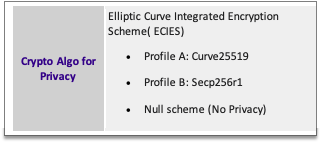
SUCI uses assymetric cryptos ( Curve25519 and Secp256r1) not supported in all
the old standard 3G/LTE SIM cards. You must generate key pairs with the above
cryptos, the private key goes to the network and the public key on the cards.
5G files are under USIM in DF
5FC0 and DF 5FD0. USIM / DF 5FD0 / 4F01 (SUCI_CALC_INFO) is only used if
service 125 is activated in UST and should contain same data as USIM/5FC0/4F07
Please see information
below.
5FC0
4F01; 5GS3GPPLOCI
4F02; 5GSN3GPPLOCI
4F03; 5GS3GPPNSC
4F04; 5GSN3GPPNSC
4F05; 5GAUTHKEYS
4F06; UAC_AIC
4F07; SUCI_Calc_Info
4F08; OPL5G
4F09; NSI
4F0A; Routing_Indicator
5FD0-SAIP
4F01; SUCI_Calc_Info_USIM
And besides that, UST (USIM
service table) is bigger than on older 3G/LTE SIM cards (5G uses up to
service 132 in UST) .
Other settings to look at are:
4F06; UAC_AIC: Should be 00 00
00 00
And default Routing
Indicator, 4F0A; Routing_Indicator, is 71, meaning 17, but a more
typical value is F1 FF FF FF, meaning indicator 1.
We recommend using services
122,123 and 124 if SUCI data is present. If service 124 is disabled then Null
scheme will be used for SUCI.
Note:
Protection
Scheme (PS) Identifier 01 (profile A): Identifier 01 is always
Profile A
Protection Scheme (PS)
Identifier 02 (profile B): Identifier 02 is always Profile B
sample below with
Profile A and Null scheme:
A0 04 01010000 A1 25 800101
8120 F3101C0053133D58996E2DCF66387504997241121BA1384C828F2F6FB9917715
|
A0 |
04 |
01010000 |
A1 |
25 |
800101 |
8120 |
F3101C0053133D58996E2DCF66387504997241121BA1384C828F2F6FB9917715 |
|
List tag |
ID List length 4 |
PS 01 (profileA) + null |
Public Key list tag |
Length (hex) |
index 1, length of id, ID |
key tag, length of data, compressed data |
key |
Where
A0: List tag (always starts
with this)
04: ID list length in bytes, so
04 means 4 bytes = XX XX XX XX
01010000: ID List: Protection
scheme 1 "0101" (profile A and index 01, first key in the key list) +
Null scheme "0000"
A1: Public key list tag (always
comes after the list tag data)
25: Length of the rest of
the data in hex (hex 25 = 37 dec), so 37 bytes of data from
here
800101: (80) tag
indicating data is for index , [01] length of the ID, [01] ID
8120: [81] key tag indicating
public key is coming, [20] = 32 bytes indicating length of the public key
the rest is the public key 32
bytes long.
Note that Profile B should have
a 64 byte long Public key length
Note also that most of our
customers actually using SUCI, mostly only uses Profile A + Null scheme.
Below is
the sample data the SUCI often is prefilled with on
our 5G cards (same as in Excel sheet). The order is Profile B, Profile A, Null
Scheme as Profile B is the most secure with it's 64 bytes of data.
A006020101020000A16B80011B81410472DA71976234CE833A6907425867B82E074D44EF907DFB4B3E21C1C2256EBCD15A7DED52FCBB097A4ED250E036C7B9C8C7004C4EEDC4F068CD7BF8D3F900E3B480011E81205A8D38864820197C3394B92613B20B91633CBD897119273BF8E4A6F4EEC0A650
Explanatory of
the sample data:
A0, A1, 80 and 81 are
"tags" often (always) followed by a length (in bytes and in Hexa
format)
A0 :
Protection Scheme Identifier List data object tag
06 :
Identifier List length (following 6 bytes)
02 01 01 02 00 00 :
Where 02 01 : Protection Scheme
(PS) Identifier 02 (profile B) with Key index 01 (refers to the first
Network Public Key entry in the Home Network Public Key List below),
and 01 02: PS Identifier 01 (profile
A) with Key Index 02 (second Public key entry),
and 00 00 : Identifier 00 with
Key Index 00 (null scheme)
A1: Home
Network Public Key List data object
6B:
Total length from here to end in bytes (6B = 107 bytes)
80: 01 : 1B (Index
01, length of id, Public Key identifier 1 = 1B)
81: 41: 04 Tag
for key, Length of data (41 = 65 bytes), flag 04 -> uncompressed data
The public key of key index 1
and identifier 1B:
72DA71976234CE833A6907425867B82E074D44EF907DFB4B3E21C1C2256EBCD15A7DED52FCBB097A4ED250E036C7B9C8C7004C4EEDC4F068CD7BF8D3F900E3B4
80: 01: 1E (Index
02, Public key Identifier 2 = 1E)
81: 20:
Length of Public Key (20 = 32 bytes)
The public key of key index 2
and identifier 1E:
5A8D38864820197C3394B92613B20B91633CBD897119273BF8E4A6F4EEC0A650"
Note for HSS/Core: Home
Network Private Key:
C53C22208B61860B06C62E5406A7B330C2B577AA5558981510D128247D38BD1D
Reference: ECIES
test data from 3GPP TS 33.501
We will soon have a tool to both generate SUCI keys and properly
format the SUCI_Calc_Info based on the generated keys if you're interested.
11. TUAK – Requests about using TUAK instead of Milenage
Hello,
I
wanted to let you know that transitioning to the TUAK algorithm is feasible,
but it requires some reprogramming and the creation of new files. Fortunately,
we have scripts ready to assist with this process.
It’s important
to note that for TUAK, the OP key must be extended to 32 bytes—twice the size
of the Milenage OP key. Consequently, the resulting OPc will also be 32 bytes.
These keys are to be stored in designated files. Currently, the SIM Editor
lacks built-in support for TUAK keys, necessitating manual entry of the keys
into the new files.
Additionally,
you’ll need to use Python to calculate the correct checksum for the TUAK Ki and
OPc keys. The setup also involves configuring a specific file, and after that,
during authentication, AMF values are used in determining whether to use
Milenage or TUAK, adding complexity to the process.
If you
provide me with the test TUAK Ki and OP keys you intend to use, I can prepare
some scripts and a comprehensive guide to navigate the configuration. Please
note, I will require a few days to prepare these materials thoroughly.
Looking
forward to your response and any further information you can provide.
TUAK configuration parameters
are these below stored in 62F1:
00 7D 10 08 10 10 08 01
- AMF: `007D`
- Subscriber Key (TK) Length: `16 bytes`
- Message Authentication Code (MAC) Length: `8
bytes`
- Confidentiality Key (CK) Length: `16 bytes`
- Integrity Key (IK) Length: `16 bytes`
- Expected Result (RES) Length: `8 bytes`
- Keccak Iterations: `1`
TUAK cards
has:
TK: 77777777777777777777777777777777
TOP:
00112233445566778899AABBCCDDEEFF00112233445566778899AABBCCDDEEFF
=TOPC: 8836E0D2BBF4FD01A02ED46FEAEB84143E5E8141E1A2978BC5BC84EF17318876
TK is stored
in 62F2
77 77 77 77 77
77 77 77 77 77 77 77 77 77 77 77 A0 33 FF FF FF FF FF FF FF FF FF FF FF FF
FF FF FF FF
Note:
77777777777777777777777777777777 CRC-CCITT (XModem) Checksum: A033
TOPC is stored
in 62F3
01 88 36
E0 D2 BB F4 FD 01 A0 2E D4 6F EA EB 84 14 3E 5E 81 41 E1 A2 97 8B C5 BC 84 EF
17 31 88 76 CA EA
Note: 8836E0D2BBF4FD01A02ED46FEAEB84143E5E8141E1A2978BC5BC84EF17318876
CRC-CCITT (XModem) Checksum: CAEA
On the TUAK
cards, if Milenage is used, it will have the keys stored same as described
below:
12. URSP / NSSAI
Hello,
Our version B of our 5G SIm card,
SMAOT500B supports URSP.
The URSP file is to code data for Route Selection Policies used by the UE to determine how to route outgoing traffic.
Also called Network slicing.
3GPP / ETSI information is
below, but better information is in the enclosed PDF from Trusted
Alliance.
Trusted-Connectivity-Alliance-5G-SIM_FINAL
(1).pdf
4.4.11.5 EFURSP (URSP)
If
service n°132 is "available" in EFUST, this
file shall be present. This EF contains UE Route Selection Policies per PLMN. The format ofthe UE Route Selection Policies are specified in 3GPP TS 24.526 [109].
|
Identifier: '4F0B' |
Structure: BER-TLV |
Optional |
|||
|
SFI: Optional |
|
||||
|
File size: > (L0 + X1+X2+…+XN +L1+L2+…+LN + 3 x N) bytes |
Update activity: low |
||||
|
Access Conditions: READ PIN UPDATE ADM DEACTIVATE ADM ACTIVATE ADM |
|||||
|
Bytes |
Description |
M/O |
Length |
||
|
1 to L0 +1 |
URSP Rules data object |
O |
L0 +1 |
||
|
+X1+X2+…+XN |
|
|
+X1+X2+…+XN |
||
|
+L1+L2+…+LN |
|
|
+L1+L2+…+LN |
||
|
+ 3 x N |
|
|
+ 3 x N |
||
- URSP Rules data object coded as follows:
|
Description |
Value |
M/O |
Length |
|
URSP Rules data object tag |
'80' |
O |
1 byte |
|
URSP Rules length |
X1+X2+…+XN +L1+L2+…+LN + 3 x N |
O |
L0 bytes (note) |
|
PLMN 1 |
|
O |
3 bytes |
|
Total length of URSP rules for PLMN 1 |
X1 |
O |
L1 bytes (note) |
|
UE Route Selection Policy rules for PLMN 1 |
|
O |
X1 bytes |
|
PLMN 2 |
|
O |
3 bytes |
|
Length of URSP rules for PLMN 2 |
X2 |
O |
L2 bytes (note) |
|
UE Route Selection Policy rules for PLMN 2 |
|
O |
X2 bytes |
|
… |
|
|
|
|
PLMN N |
|
O |
3 bytes |
|
Length of URSP rules for PLMN N |
XN |
O |
LN bytes (note) |
|
UE Route Selection Policy rules for PLMN N |
|
O |
XN bytes |
|
Note: The length is coded according to ISO/IEC 8825-1 [35]. |
|||
Example
EFURSP (URSP)
Logically:
URSP rules for one PLMN only
- PLMN: 246 081
Rule Precedence = 0
Traffic
descriptor:
- DNN = TestGp.rs
Route Selection Descriptor:
- Precedence = 0
- Network Slice Selection, S-NSSAI:
'01 01 01 03' (ST: MBB, SD: 010103)
Coding:
Sample data: 80 22 42 16 80 1E 00 1C 00 00 0C 88 0A
06 54 65 73 74 47 70 02 72 73 00 0B 00 09 00 00 06 02 04 01 01 01 03
80: tag
22 : length of data (34 bytes)
42 16 80 : PLMN (246 081)
1E : length of rules for PLMN
1 (30 bytes)
00 : Rule precendence 0
1C : Length
00 00 0C 88 0A : don't know
check 3GPP TS 24.526 clause 5.2
06 : probably length of
traffic descriptor name (TestGp)
54 65 73 74 47 70 :
"TestGp"
02 : length of domain (rs)
72 73 : "rs"
00 0B 00 09 00 00 06 02 04 :
don't know check 3GPP TS 24.526 clause 5.2
01 01 01 03 : Network Slice
Selection, S-NSSAI: '01 01 01 03' (ST: MBB, SD: 010103)
13. ViLTE / ViNR
Hello,
There are no additional requirements
for ViNR / ViLTE in relation to VoLTE / VoNR The same files in ISIM application
are used for IMS registration and authentication procedures.
ViLTE / ViNR is entirely
managed at device level. It is built on top of VoLTE / VoNR and the
only requirement in card side is that the card is used for IMS-AKA procedure.
The role of the USIM/ISIM in
VoLTE/VoNR is only to provide access / authentication to the IP Multimedia
Subsystem (IMS).
Authentication to IMS is using
the same mechanism as authentication to the LTE or 5G network.
So any card working on VoLTE /
VoNR should also work for ViLTE / ViNR provided that the device
supports this service and the procedures required for it.
In SIM Editor you should make
sure that ISIM Auth keys are also checked and created during creation of
scripts. ISIM Auth keys needs to be provisioned as well as IMPI, IMPU and
Domain.
14. general info regarding ISIM and IMS APN
information:
Short
answer:
The IMS
registration protocol (and the call initiation session as well) is SIP. And
after initiation session IMS APN information is returned
by the HSS.
Long
answer:
Under
an LTE coverage, a VoLTE device (mobile, tablet, etc.) will automatically
perform an LTE Attach followed by an IMS registration for
VoLTE if supported by the network. The LTE Attach phase will
occur even when VoLTE services are not available. If the operator has already
deployed LTE and it’s adding VoLTE services, such as incoming calls, outgoing
calls, and supplementary services the only real difference lies in IMS
registration for the new services.
The IMS
registration protocol (and the call initiation session as well) is SIP. Due to
this, after IMS APN information is returned by the HSS,
the UE sends the following registration information:
- “+sip.instance” containing an IMEI
URN
- The IMS Public User Identity, IMPU ,
e.g: “tel:+447700900123”.
- The IMS Private User Identity, IMPI ,
as an NAI: e.g. username@realm
In the
most common scenario, the UE will retrieve the Private User
Identity and the Public User Identity and the shared
secret (necessary to the IMS-AKA authentication) from the UICC,
(the SIM card). All information needs to be provisioned in
the HSS so subscribers can successfully register the device in
the IMS.
From
the IMS point of view, the three distinctive parameters to be
provisioned in the HSS (apart from the subscriber profile)
that distinguish what makes a subscriber unique are retrieved from the UICC.
15. We are using 5G_AKA authentication currently.
Could you let us know if the SIM card that we have supports
EAP_AKA_PRIME, too?
Yes, all
5G cards to our knowledge supports both, and no there is no configuration to be
made on the card for that.
EAP_AKA_PRIME
is actually EAP_AKA
Primary Authentication of the UE and AKMA: When
a UE registers with the PLMN for the first time, the network performs a primary
authentication of the UE. Only after the successful primary authentication of
the UE, the UE is authorized for additional network services. 3GPP has
specified two protocols 5G-AKA and EAP-AKA’ for primary authentication,
both of which can be executed over 3GPP access and non-3GPP access.
16. Questions and answers about ICCID
|
ICCID components: |
|
MM CC II NN NNNN NN NNNN (CH) |
1)
Customer question: I’d like to have the ICCID
including the check digits on the cards, for both human readable and DM code. So 18+1 digits, is that supported?
Our answer: In our current automated
system, we can either enter the plain ICCID without checksum to be printed, or
read the full ICCID (20 digits) and print it. As we always use 18 digits for
the ICCID, the full ICCID would be 18 digits for ICCID + checksum + 'F'
2)
Customer question: So your default ICCID is actually
telling “Telia Sverige AB”?
Just to
know, I personally wouldn’t care for R&D cards, just for final customer
orders.
Our answer: We can change ICCID according to customer request. All our new batches of cards actually starts with
8999… where 99 is the acceptable digits for private networks.
3)
Customer question: I need some hint on the ICCID
lengths.
I have
SIMs from several sources on my desk and some use 19 digits, like you, and
others use 20 digits (samples from SIM manufacturers and my used SIMs from
foreign operators, no exotic countries … except LycaMobile US: 89-1-960-xxx,
none from Russia +7-xxx).
From what
I learnt on the net is, 19 digits is stipulated by ISO7812, 20 digits come from
an older GSM spec, there are even 21 digits possible by GSM.
Our answer: Even 22, but the size of our
ICCID file only allows 20 digits in total.
Some use
the dialing country code, some use the MCC for 2nd field;
Our answer: In our opinion dialing country code is more common
Customer question: So both (all) length can be used?
Admitted, the ICCID is not used in the real mobile network.
Our answer: We've had customers using
000000000000000001 as the first ICCID. There are no regulated rules. I would
recommend you see it as a serial to keep track of your cards. If to be used
anywhere in the world I would go for 8999... and then you could set a number
for customer or non-specific end customer
in the II, and other numbers for specific customers you may have in case we
produce them in some kind of customer batches for you, followed by production
date of the cards and then an ID.
19. Questions
Q1:
I have to deal with a 5G private SA network that
has no SMS nor USSD feature, hence no trigger for OTA can be sent to the SIM
cards.
I have seen from at least two other major SIM
manufacturers that they both offer a kind of "polling app" that is
configured to poll the OTA server on a preconfigured IP or even URL + DNS
configured via https upon configurable events, e.g. power on, network attached,
changed roaming network, some configurable time has eleapsed.
The app is somehow not visible in EF.DIR though
...
Question is whether you can offer that one as
well and how will the parameter be configurable? Only in a customized SIM
profile? In some hidden/secret EFs that could be updated via OTA?
Or if we have a customized profile, per
production run / per order based on this profile?
Answer: We have no polling app. Most OTA solutions are based on SMS,
how would this customers OTA work ? I can do some inquiries to see what our
suppliers have, but it will take some time probably.
Q2:
ADF.USIM/DF.5GS/EF.SUCI_CALC_INFO
5FC0/4F07
There are two modes for SUCI calc, in ME or
inside USIM, switched by UST service°125.
Q1) Is the file also made visible when USIM shall
calculate SUCI, that is srv°125=AVAIL?
if not, is the file then just hidden but
accessible for the USIM app? How else does the USIM app then gets to know about
the public key(s)?
Answer: If service 125 activated, normal SUCI Calc Info becomes
hidden and another file needs to have the keys. So provisioning should be both
files (5FC0/4F07, 5FD0/4F01) just in case.
SUCI question:
ADF.USIM/DF.5GS/EF.SUCI_CALC_INFO
5FC0/4F07
I understood that the public keys are network
specific and SmartJac has just selected the test defaults from TS 33.501 for
your "default" SIM profile.
Of course the settings can be changed in a SC
reader or via OTA, but for OTA you need to be attached first ...
Assuming when dealing with several private
networks, one could specify the public key(s) in the order customization XLS as
like as we'd do for IMSI range.
Answer: Yes, simplest is to include SUCI Calc Info in the Excel sheet
we provide.
Question: We need VoLTE
or VoNR support on the SIM cards
Answer:
WE have
both LTE cards and 5G cards supporting IMS with ISIM application in the cards.
The LTE card is for VoLTE and 5G card supports the VoNR.
LTE card
article number is SMAOT100A234FF and 5G card SMAOT500B234FF.
You can
have them either supporting XOR or MILENAGE authentication.
20. Technical Specs for our SIM cards
SIM CARD Software
Features
·
Java Card JVCM/JCRE/JCAPI 3.1.0
·
 3GPP Release 16
·
GlobalPlatform 2.3
·
OTA
·
OTA over SMS / AES ciphering
·
OTA over CAT-TP
·
OTA over HTTPs / GP2.2 Amd B v1.1.3
·
Authentication applications
·
4 logical channels
·
SIM, USIM , ISIM, PKCS15
·
Authentication algorithms
·
 Milenage or TUAK
or XOR
Milenage or TUAK
or XOR
·
Cryptographic features for OTA
·
CRC16, CRC32
·
DES, 3DES, AES 128/192/256 bits
·
AES CRT
·
HTTPs OTA
·
Java Card™ Cryptographic APIs
·
CRC16, CRC32
·
DES, 3DES, AES 128/256 bits
·
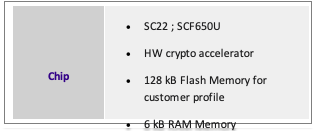
User memory : 128 kB
Hardware
Features
·
32-bit CPU in 90 nm CMOS technology
·
Max frequency 44 Mhz
·
 DES, AES, RSA,
ECC Hardware accelerator
DES, AES, RSA,
ECC Hardware accelerator
·
Supply voltages range: Class A,B,C
·
Memory Endurance : Up to 500,000 Cycles
Specific
Features
·
Global Platform Am A,B,C,D,E
|
Model |
SMAOT |
|
|
Dimensions |
CR80 (1FF) – 54mm x 86 mm, 2FF(mini), 3FF(micro),
4FF(nano) |
|
|
Weight |
<10 g |
|
|
Components |
Silicone (chip) + plastic (card-body) |
|
|
Voltage and capacity |
1,8V – 5,5V |
|
|
T° of operation |
-25 - +85 |
|
|
Certifications |
RoHS/REACH |
|
|
Parametrics - chip |
SC22 |
|
Ambient Temperature min max |
-25 °C 85 °C |
|
Applications |
SIM and UICC for mobile communication |
|
Asymmetric Cryptography |
ECC up to 521-bit ; RSA up to 4096-bit |
|
CPU |
32-bit |
|
Interfaces |
ISO 7816 |
|
NVM |
128 KBytes |
|
Product Description |
32-bit SWP SIM card security cryptocontroller |
|
RAM |
32 kByte |
|
Symmetric Cryptography |
AES up to 256-bit ; DES, 3DES |
|
RAM |
32 kByte |
|
Symmetric Cryptography |
AES up to 256-bit ; DES, 3DES |
21. CRC calculations for our SMAOT cards (for Ki and Opc)
Sample
snippet in Python to calculate CRC of type XModem or FFFF for both 16 and 32
bytes :
import sys
def crc16_ccitt(data: bytes,
init_crc: int) -> int:
crc = init_crc
for byte in data:
crc
^= byte << 8
for
_ in range(8):
crc = (crc << 1) ^ 0x1021 if (crc & 0x8000) else crc
<< 1
return crc &
0xFFFF
def main():
# Check for
correct number of arguments
if len(sys.argv)
!= 3:
print("Usage: crc.py [XMODEM|FFFF] [16-byte or 32-byte hex value]")
sys.exit(1)
# Parse
command-line arguments
crc_type =
sys.argv[1]
hex_value =
sys.argv[2].replace(" ", "")
# Check for valid
input length (16 bytes = 32 hex characters, 32 bytes = 64 hex characters)
if len(hex_value)
not in [32, 64]:
print("Invalid input length. Please enter a 16-byte or 32-byte hex
value.")
sys.exit(1)
# Convert hex to
bytes
data =
bytes.fromhex(hex_value)
# Calculate and
print the CRC checksum
if
crc_type.upper() == "XMODEM":
crc_result
= crc16_ccitt(data, 0x0000)
print(f"CRC-CCITT (XModem) Checksum: {crc_result:04X}")
elif
crc_type.upper() == "FFFF":
crc_result = crc16_ccitt(data, 0xFFFF)
print(f"CRC-CCITT (0xFFFF) Checksum: {crc_result:04X}")
else:
print("Invalid CRC type. Please use 'XMODEM' or 'FFFF'.")
sys.exit(1)
if __name__ ==
"__main__":
main()
22 General request for input data
Hello,
If you
haven't had the chance to complete the attached Excel sheet yet, we kindly ask
for your assistance in doing so at your earliest convenience. It's been
pre-filled for your convenience with some data.
If you
are opting to include a proprietary Operator Key (OP key), please adhere to the
following steps to ensure the document's security:
1. You
may encrypt the sheet using our public PGP key, which can be found in one of
the tabs within the Excel file, or by utilizing the attached .asc file
provided.
2.
Alternatively, you have the option to password-protect the Excel sheet. If you
choose this method, please send the password in a separate email to
support@smartjac.com, referencing either your Purchase Order (PO) number or the
name of the Excel file for clarity.
Upon
receipt of your completed Excel sheet, we will produce the cards and generate
an output file containing data such as ICCID, IMSI, Ki, OPc, (and
optionally eKi, particularly if you opt for the application of an A4 transport
key for enhanced security). It's important to note that we will employ the same
level of protection for the output data file as is used for the Excel sheet
you're submitting.
Should
you have any questions or require further clarification, please feel free to
reach out.
Best
regards,
23
Public key:
-----BEGIN
PGP PUBLIC KEY BLOCK-----
mQENBFzGz/QBCAC8FtzEkMUfWXOu8nAz+YxXmPxVoJeCKQ5qf15etgyi7r7QBRcs
b5YO0hjSdZgfJnxvOUlIxDWmllZfKxbS19q6fsF2eQfbQ+AYwwtbAuCWIOwqu7ap
th7Y9ljWhUz23JxG+Omau+N+bKnV9SSSNrBuntNwz/+qb+rBp0lL4BSwWJike/I5
PuU4GzzjPuo3G3eYp76Ja70ggLuCT49wvyXRSnt/0SPhvB1cINvABsJNkQ6yi22l
uIRy4Y3epOLSQUS8/IkGZ9KoiNb0qetmSzmANquWsEdwu71ULdHaJ3Hpk7X1Ne6X
+Dd3h4mAvevFzw2Yi61JQJbWf4uZ0zcQvEEpABEBAAG0KVNtYXJ0amFjIE5vcmRp
YyBBQiA8c3VwcG9ydEBzbWFydGphYy5jb20+iQFUBBMBCgA+AhsDBQsJCAcCBhUK
CQgLAgQWAgMBAh4BAheAFiEEm8unywpHv2OivpbB9cZJgsQEF+QFAmLyVp0FCQ1d
UucACgkQ9cZJgsQEF+QujQgAtZ08gpbPtbbjh7tj4khaRWE1FOa1LzNvjhKq0qNa
+o3ju0SV9wN8wgtIVo/Qi6+WQO3JyzhdcdmDKwYVb4sDZBL1L6zc4FTzYJgT/0vT
ILijHJ3cXZpwDkf2kUpOa/O0mQtX6c+ZqfmqbnJqt6WP1bIWRWZ7X2fbySb0Ny+L
rP+si5xlZAomfpMxp9gNHEIwq9pYTlRcDSg/g24dOOkNiORCAlHyqCarCm9lEiKN
7sgl+K9SptGrY2L7lKLphU+R6pt+PqGKRPx23l0PKdWLPDn/J2xw28uP+vuMOsGQ
0jFBHj3lahYARsns04JDDTluYEr4p9M9OnSU18u/djp3N4kBIgQQAQgADAUCXMbt
AgUDABJ1AAAKCRCXELibyletfHlRCACvKglMlTvfNJQSjAdAxdbncr9hUA43uc9j
LNfto3S0AYTaFm5cau3yei35V4mDuTmavpjTH039zdQ1TpGPwlu2a6RShfgx9Kmb
Qq9byOuSvC5AHZUamaY1iaU6I0JcC/XfLoMmuarYasnZTjSLNXBwVh0tbPXtFY4J
ob/bEx0uOXDQ4LFv5PQP3d9OqYRsNzFftMFJBqmOuqBKlYUW9AB018BM/vyL2jR3
EWJfFoxJe33mEHxxURSyQ/Wj5Wov2CnBytKOlTSBHBDXNhXbz3wPv6ald4XGbk2x
zPx8qyv5qUZMENjksx9BgPmdfKWYPZ9u97OS+NnxvqXEMB5JFgyyuQENBFzGz/QB
CADJBKw2/AA3dxqxSyYP9EamoiQyHuNae/80SavptHmqt7O7LY01OihczIa/2DW5
LvJc8UlMGUhacboZ6lW60SZ4iiwknKEXk0MzbRzSDZtLwG7q4+RH/Bkk/SybVGm0
REw1MvTkafkX1n88M7QTqMdOkeJNQ1rpC5cYAclv/cD5lUhSvzI6ewvj0M6GPx5d
qvaB4oz+B2IB+/fGvs+IZUHQHnRIFvTy1Sr6UQQS13Ni4McPRCWS0yhek6au5+bR
6bz0PFC4xOW8vnfF5FQdmy8ScyhpZdhdDV5o97UYk5hC9k5QlXi7KmQNU2Ae7Ir/
MdGW/k7VhTtOTewkLA55pZIVABEBAAGJATwEGAEKACYCGwwWIQSby6fLCke/Y6K+
lsH1xkmCxAQX5AUCZDfPcAUJCzNmfAAKCRD1xkmCxAQX5EnICACbpauG2b00BLes
SLFoF0Xyso8782kgw6AkbngwIfXtODgUVkth7cxCOmyNqr9lyp8EIJIoH7Q02gRS
5rJVNSb/6qPEmuMgy44xrTvJFJ2noOKhf8YjB963WUD5Ng4LRWZAfQkV68Ub6C4n
tsv7JnEY0LbxTa9mtVLYdF6z9PaZk6hzAWMgv4/QcZ2O6rufmkA1ix9cIlkNXNm3
/1Za+uf1CZJ9EB9Lm5GqqjMPH4OPzD38jT3d4A/WpCXP5/3ZUMJwv03yiKMZK1V/
gVjUDpVc+dwrA7Xtrso61/Q9TnLH7FqERU0cPiTWFr/Et9HUvv7W55f165t1QLec
y9H1mU7b
=Nzms
-----END
PGP PUBLIC KEY BLOCK-----
24.
card reader errors; PC/SC errors
Error 0x000006F7 is
most probably a PC/SC (smart card reader) error code from Microsoft.
A: We
recommend checking the communication between the smart card reader and the
software. Please click the "Check ATR" button to test the
communication between the software and the smart card reader. If the button
does not work, it often indicates a communication issue with the card reader.
If you get an ATR number please copy it and send it to us so we can rule out a
virtual smart card on your system.
1. Check
Smart Card Reader Connection:
- Ensure that the smart card reader is properly connected to your
computer.
- Verify that the USB cable or other connection is secure.
- Sometimes, a loose connection can cause communication errors.
2. Update
Smart Card Reader Drivers:
- Outdated or incompatible drivers can lead to communication problems.
- Visit the manufacturer's website for your smart card reader and
download the latest drivers.
Knowledge
Article View - Thales Customer Support (gemalto.com)
- Install the updated drivers and restart your computer.
3.
Restart the PC/SC Service:
- The PC/SC service manages communication with smart card readers.
- Press Win + R, type `services.msc`, and hit Enter.
- Locate the Smart Card service, right-click it, and choose Restart.
- Check if the software can now communicate with the reader.
5. Check
for Conflicting Software:
- Other software running on your system might interfere with the smart
card reader.
- Temporarily disable any security software, firewalls, or other
applications that might block communication.
- Test the software again.
6.
Inspect Event Logs:
- Open Event Viewer (search for it in the Start menu).
- Navigate to Windows Logs > System.
- Look for any relevant error messages related to smart card readers.
- Investigate further based on the error details.
If Using
Virtual Smart Card or RDP Software:
1. Check
VMware Workstation Settings:
- Access the virtual machine settings within VMware Workstation and
verify if the smart card device is listed. If it is, you should have the option
to disconnect or remove the virtual smart card device from the virtual machine.
2. Adjust
Device Redirection:
- Ensure that the virtual machine is not set to automatically connect new
USB devices (which could include smart card readers) by default.
3. VMware
Tools:
- Verify that VMware Tools is installed and up to date on the guest
operating system, as this software suite manages the integration between the
host and virtual machine, including smart card reader passthrough.
4. Host
System Settings:
- On the host system, confirm that the physical smart card reader is not
being shared or used by another virtual machine or service.
5. RDP or
Other Remote Services:
- If an RDP session or another remote service is active, ensure that it
is not set to redirect or share smart card devices with the remote system.
6. Direct
Physical Access:
- If possible, run the SIM Editor directly on the host system where the
physical smart card reader is connected, avoiding the use of virtual machines
or remote desktop services.
Microsoft
issue:
The error message you’re encountering, “the
stub received bad data,” Let’s explore some potential solutions to resolve
this issue:
- Run the System File Checker (SFC):
- Open Command
Prompt as an administrator.
- Type the following
command and hit Enter:
o
sfc /scannow
- The
SFC tool will scan and repair any corrupted system files. Check if the
issue persists after running this command
- Run the Deployment Imaging Service and Management Tool (DISM):
- Open Command
Prompt as an administrator.
- Execute the following
commands one by one:
o
DISM.exe /Online /Cleanup-image /Scanhealth
o
DISM.exe /Online /Cleanup-image /Restorehealth
- The
DISM tool checks system health and restores files if necessary. It might
take some time to complete, so be patient
25. Self provisioned / customer provisioned SMAOT500B234FF cards not Authenticating
Let's
address the potential causes for the behavior you're seeing.
- Provisioning Data and Checksums:
- Please share the provisioning data used, including the
checksums for the Ki and OPc when writing one of the cards.
- This will help us verify if there are any discrepancies in
the key material.
- Files and EF Provisioning:
- Could you specify which files/EFs you provisioned and with
what data? Understanding this will allow us to ensure that all mandatory
fields are correctly written.
- SUCI_Calc_Info and Key Mismatches:
- If SUCI is used and there's an issue in the SUCI_Calc_Info
parsing or a key mismatch with the private key in the UDM, the MSIN might
not be encrypted correctly, leading to an incorrect IMSI.
- Please verify that the SUCI-related calculations and keys
are correctly configured.
Verify File Provisioning:
- Make sure all essential EFs are provisioned. Common EFs
include:
- EF IMSI: Contains the IMSI.
- EF Ki: Contains the
authentication key.
- EF OPc: Contains the Operator
Configuration.
- EF SUCI_Calc_Info in 4F01: Contains
data for SUCI calculation when performed by UICC
- UST
- HPLMNwACT
- AD
- Check SUCI Configuration:
- Verify
the SUCI_Calc_Info and ensure it matches the private key in the UDM. Any
mismatch here can lead to incorrect IMSI encryption.
- What UE / Phone are you testing with ? If Apple
device, note that IOS17 is needed and only limited PLMN's are permitted by
Apple.
- Logs and Diagnostics:
- Although you mentioned no logs were shared, if possible,
providing logs or any diagnostic information would greatly aid in
pinpointing the issue.
- Look into the AMF logs for any errors related to
authentication and registration.
Summary
- Can you provide the exact provisioning data and checksums for
the Ki and OPc?
- What specific EFs did you provision, and what data was used?
- Are there any logs or diagnostic outputs from your testing
that you can share?
26. We noticed that
using your SIM cards, this device is not sending any registration requests
towards the gNB.
Thank you
for reaching out regarding the issue with the 5G SA SIM cards. Let's try to
troubleshoot the problem step by step.
Check the Device Configuration: It's difficult to
determine if this particular device needs any specific configurations. It could
be related to the Ki/OPc keys, but normally, if there is an issue with these
keys, the device should still attempt to register.
Test on Another Device: Can you try using another phone
to see if the issue persists? This will help us determine if the problem is
device-specific.
Collect Communication Traces: Are you able to get any
communication traces between the phone and the network? These logs can provide
insights into what might be going wrong during the registration process.
Check PLMN Compatibility: Is your personal SIM card using
the same PLMN as the device? Sometimes, phones have restrictions regarding
specific PLMNs, especially for 5G networks.
Please
let me know if these steps help or if you need further assistance. I am here to
support you through this process.
27. eSIM / SMDP+ in-house and locally.
While
this is certainly possible, it comes with significant cost and operational
considerations.
1.
Cost: Implementing an in-house SMDP+ and management system is a substantial
investment. The project cost could range from $500,000 to $1,000,000, including
GSMA certification, excluding ongoing operational costs and licensing fees
(both one-time and recurring). But this is a rough estimate only.
2.
Certification and Security: The SMDP+ server must be approved and certified by
GSMA to ensure eSIMs can be installed on commercial phones. This certification
involves meeting rigorous security requirements, adding complexity and time to
the project.
3.
Infrastructure: The SMDP+ server needs to be accessible from the internet to
allow phones to download the eSIM. Using this option requires a cybersecurity
team to manage IDP and IDS of course. Alternatively, the phones must be within
an internal network, which can limit flexibility and increase management
overhead. Users can only download eSIMs when the private WiFi network is within
reach.
4.
Operational Expertise: Managing such a system requires dedicated staff with
specific expertise in eSIM technology, security, and network management of
course.
We
have the partners to solve this. We could reach out to our partners to propose
a comprehensive solution. This project will involve different actors, where
Smartjac could play a key role as part of the project management team. We can
also handle eSIM profiling and other crucial aspects of the eSIM. But other
partners needs to be involved for the smdp+ server, eSIM management system,
API’s and authentication management, GSMA certification and so on.
28. attempt to log into 3G networks before connecting to LTE
Thank you
for providing detailed information about the issue you are facing with the SIM
cards. Based on your description, it seems that the phones supporting voice
& data services are attempting to log into 3G networks before connecting to
LTE, which is causing a timeout at the MAP level as you do not operate an HLR.
To
address this, we have a few suggestions and questions to ensure we can steer
devices away from 3G networks and prioritize LTE connections.
1. UST
(USIM Service Table) Check:
- Could you please confirm which services are enabled in the UST on your
SIM cards? You could try to:
- `Service 27` (GSM Access): Ensure this is deactivated to
possibly block 3G access.
2. EF
Files Configuration:
- HPLMNwAct
is configured on your cards with Access Technologies NG-RAN (prio 1) and
E-UTRAN (prio 2)
- You
could try to configure the `PLMNwACT` file to ensure they prioritize
only 5G and LTE networks. This setting should list NG-RAN and LTE
(E-UTRAN) and exclude 3G (UTRAN).
3.
Network Steering:
- Implementing Enhanced Steering of Roaming (SoR) can help in directing
devices to prefer LTE networks and avoid 3G. You just enable Service 127 in UST
to test that. It should retrieve data from HPLMNwAct regarding network
preferences.
I have no
experience in the Nr 3, and it's probably a 5G feature, so you may not have if
you have an LTE type of Network. You can read about Enhanced Steering
here: https://www.etsi.org/deliver/etsi_ts/123100_123199/123122/18.06.00_60/ts_123122v180600p.pdf
29. not being able to see your network (PLMN) from your mobile equipment (ME)
To address the issue of not being able to see your network (PLMN) from your mobile equipment (ME), refer to the 3GPP TS 23.122 specifications outlined in the document. Here are the key points and actions you can take:
1. PLMN Selection and Roaming:
- Automatic Mode: The device automatically selects the highest priority PLMN that is available and allowable based on a predefined list. If the automatic mode fails to find a network, it will continuously search for the highest priority PLMN that is available【31†source】.
- Manual Mode: The user manually selects a network from a list of available PLMNs displayed by the device. Ensure you are selecting the correct network manually if the automatic selection is not working【31†source】.
2. Forbidden Location Areas:
- Your device might be in a location area or tracking area that is forbidden for roaming. This information is stored in the device and prevents it from attempting to connect to these areas repeatedly【31†source】. Check if your current location is marked as forbidden and if so, move to a different area or reset the device settings to clear the forbidden list.
3. Signal Level and Network Availability:
- Make sure your device is in an area with adequate network coverage. Sometimes, signal levels can be too weak for the device to register on the network. Try moving to an area with better signal strength【31†source】.
- Cell Selection and Reselection: Your device might not be able to find a suitable cell to camp on. Ensure that the SIM card is correctly inserted and that the device is configured to automatically select a network【31†source】.
4. Network Configuration and Settings:
- Check the device settings to ensure it is configured for the correct network type (e.g., LTE, 5G). Incorrect settings might prevent the device from finding the appropriate network【31†source】.
5. SIM Profile and Authentication:
- Ensure that your SIM card is properly provisioned and the SIM profile is configured correctly. Incorrect provisioning can lead to issues with network visibility【31†source】.
6. Emergency Calls and Limited Service State:
- If no suitable network is found, the device may enter a "limited service state," allowing only emergency calls. Ensure your device is not in this state and try reselecting the network manually【31†source】.
7. NAS Behavior Configuration:
- Non-Access Stratum (NAS) configurations could affect network selection. Ensure your device's NAS settings are correctly configured to enable proper network registration and roaming behavior【31†source】.
8. CSG and CAG Selections:
- If your device supports Closed Subscriber Group (CSG) or Closed Access Group (CAG), ensure these settings are correctly configured. Misconfigurations here could prevent network access【31†source】.
9. Device and Network Synchronization:
- Sometimes, synchronization issues between the device and the network can cause connectivity problems. Restart your device to initiate a fresh network search and re-synchronization